Sep 29, 2026
🏪 Create layaways in your store
Some layaways start at your counter, not online. You can now create them in the app. It makes a real Shopify order for the customer, records the deposit as a cash payment, and reserves the items. The customer sees the layaway in their store account and can pay the rest online or in store.
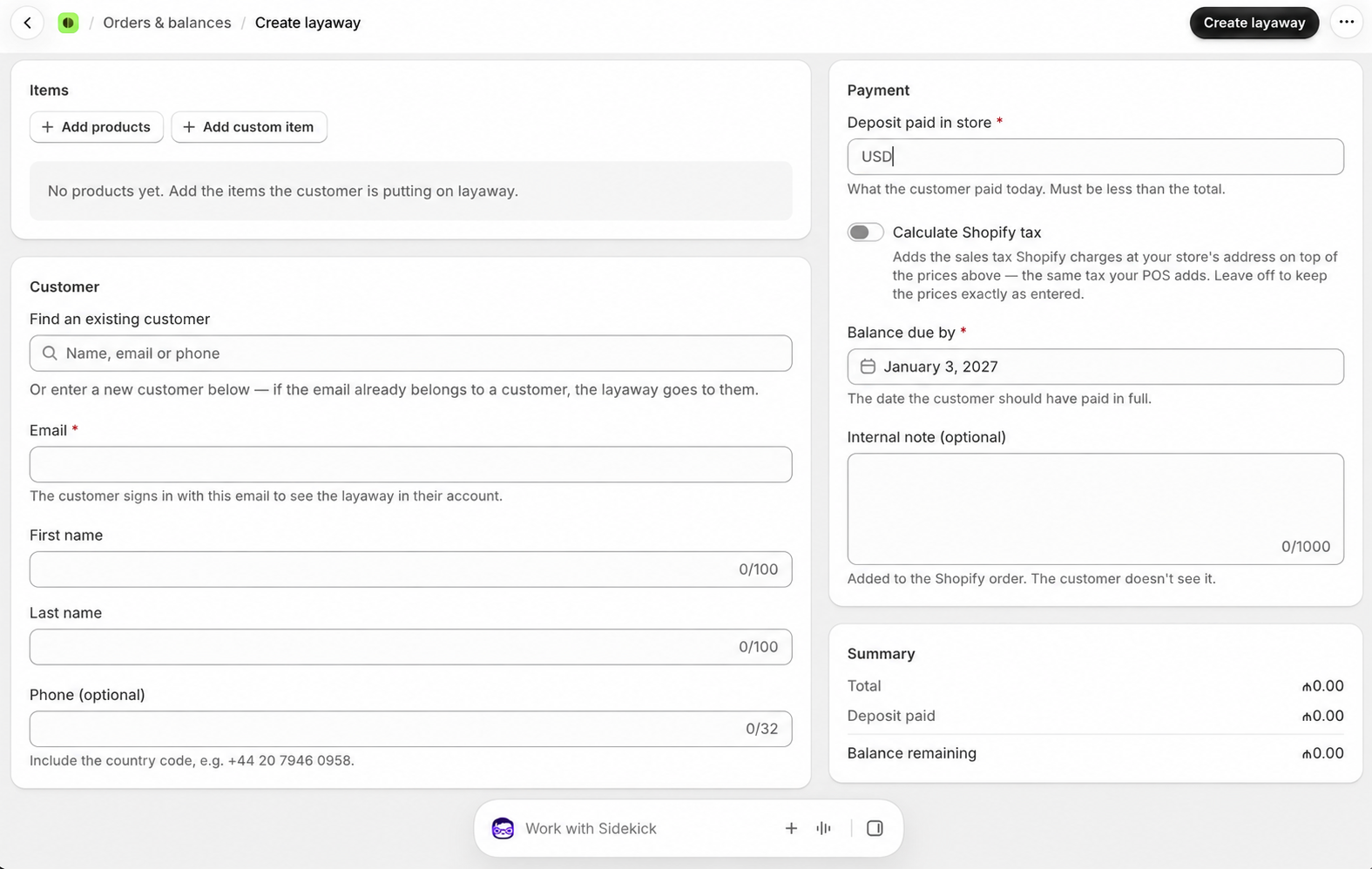
The app never charges these balances by itself.
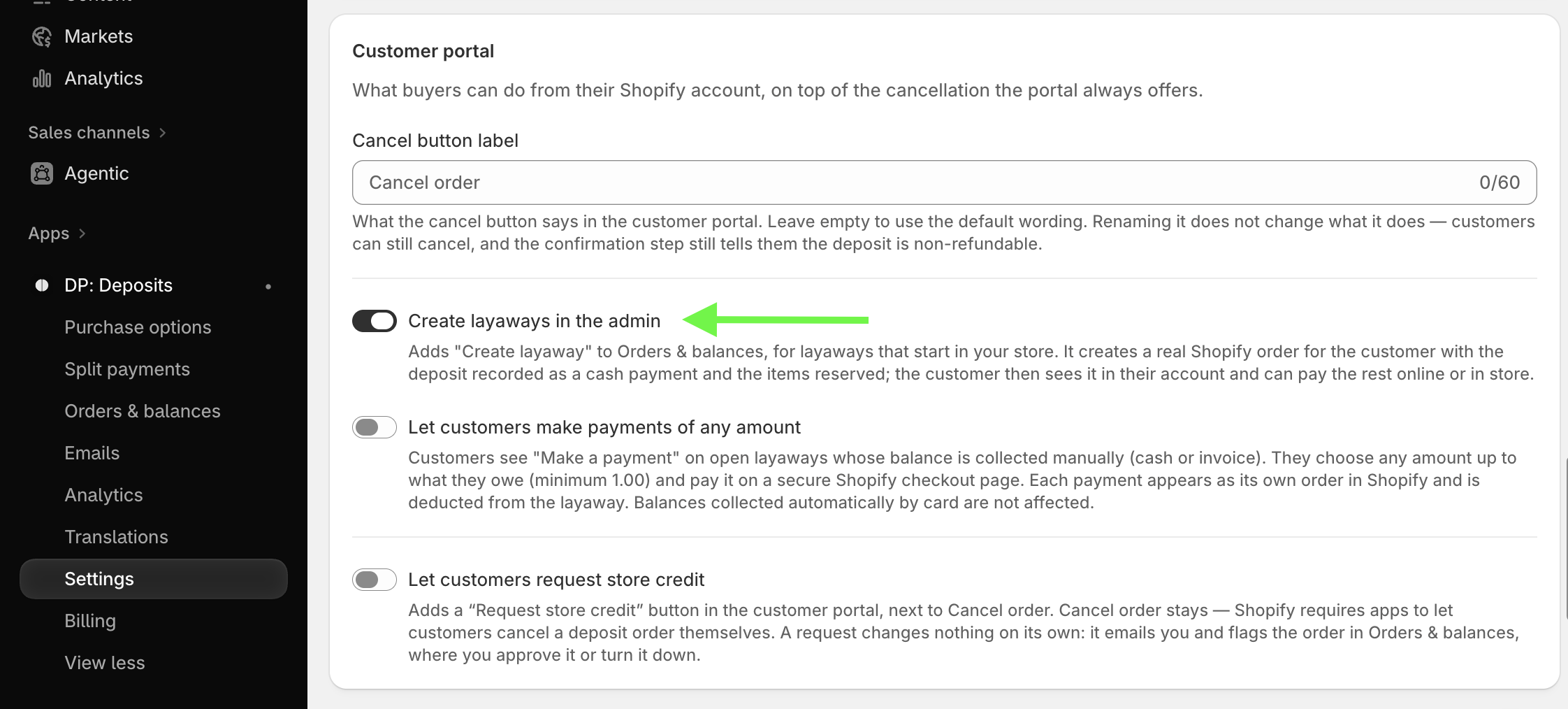
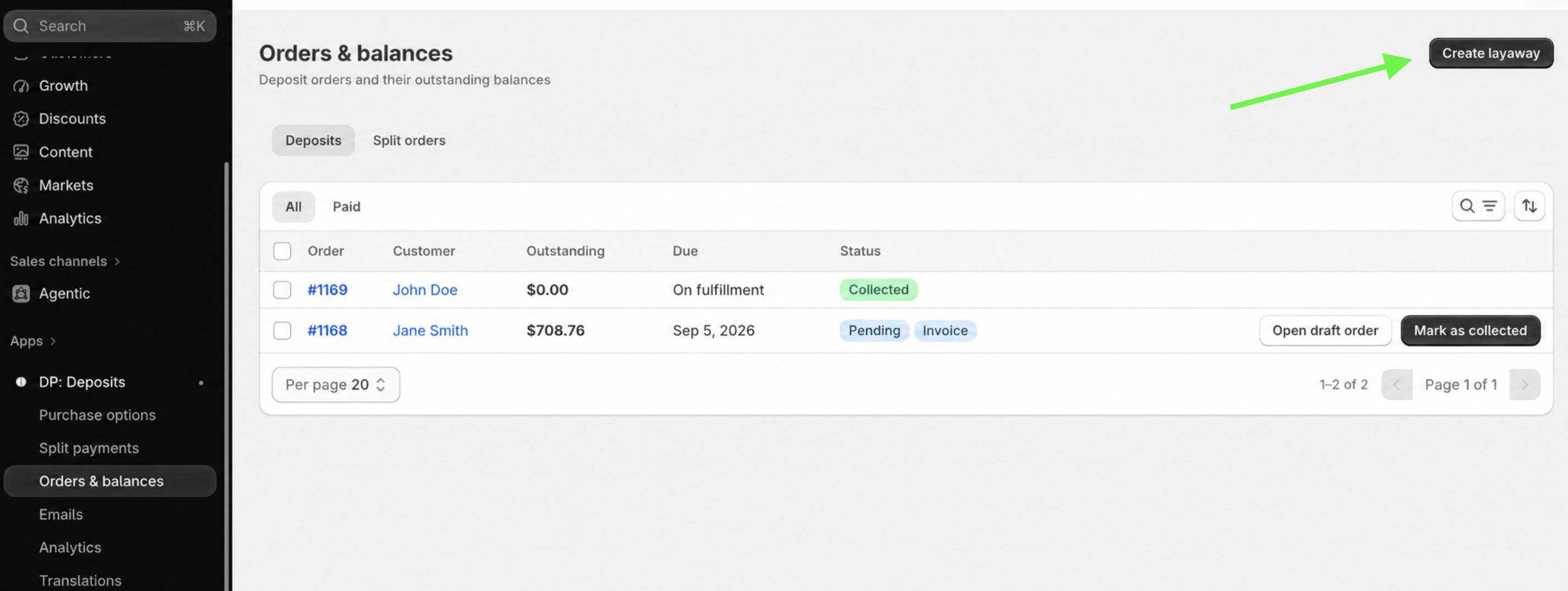
Where to find: Settings → Customer portal → Create layaways in the admin. Then go to Orders & balances → Create layaway
Settings → Customer portal → Create layaways in the admin.
Orders & balances → Create layaway
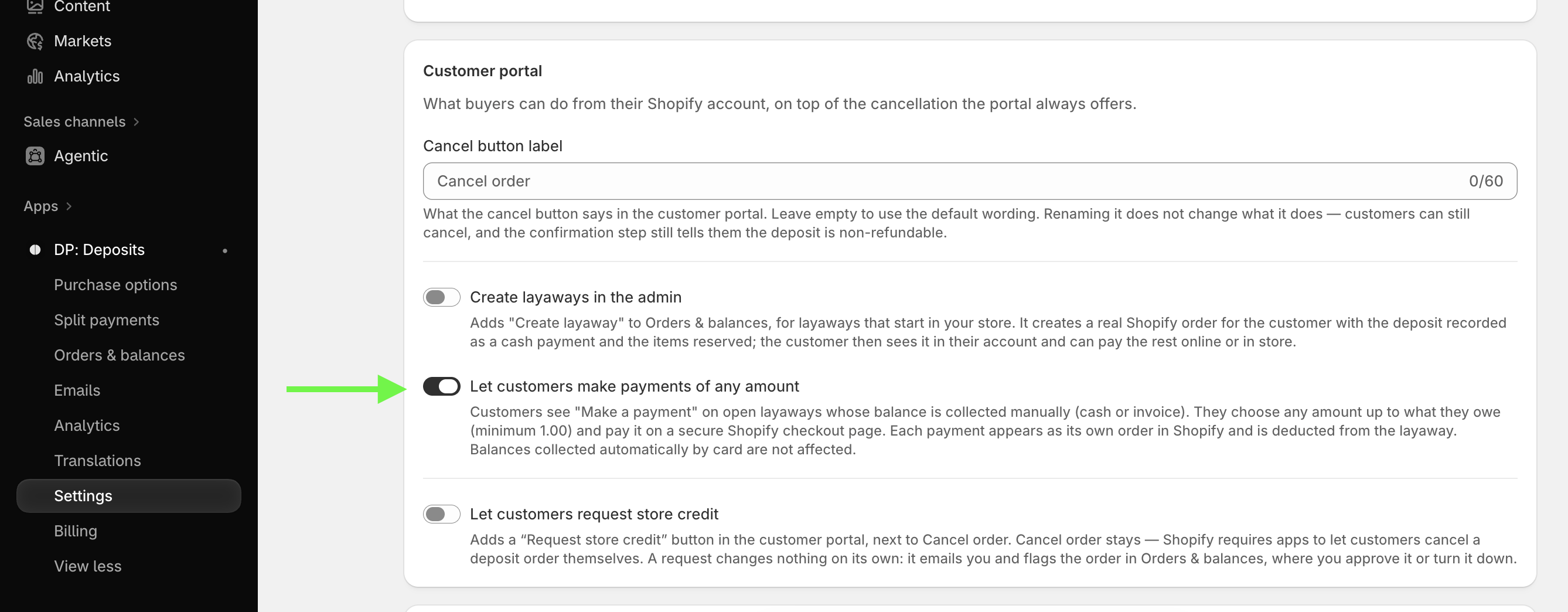
💰 Buyers pay any amount, any time
Buyers can now pay part of their balance from their store account. They choose any amount up to what they owe and pay it on a secure Shopify checkout page. Each payment shows as its own order in Shopify and is taken off the balance.
This works for balances you collect by hand (cash or your own invoice). Balances charged by card are not affected.
Where to find: Settings → Customer portal → Let customers make payments of any amount
🧾 Record payments taken in store
When a buyer pays you in person, by cash, card terminal or bank transfer, you can add it to their balance. It is taken off the balance right away. You can add a note for your records, like "Cash, till 2". The buyer doesn't see it.
You can also see every payment on an order, paid online or in store, in one list.
Where to find: Orders & balances → select a balance → Record payment or Payments
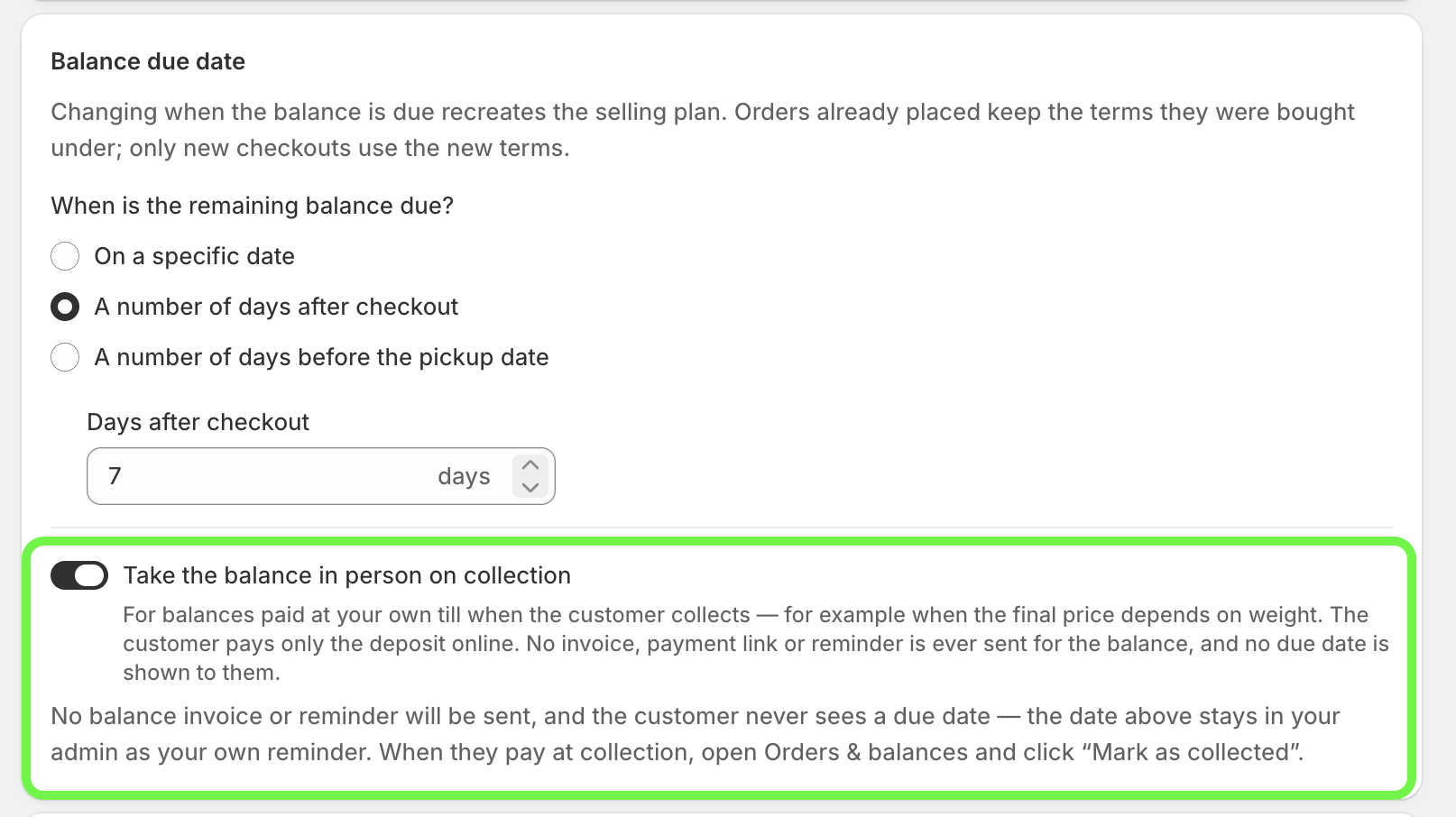
🤝 Take the balance in person on pickup
On draft-order offers, you can now take the balance at your own till when the buyer picks up the order. This helps when the final price depends on weight. The buyer pays only the deposit online. No invoice, payment link or reminder is sent, and the buyer doesn't see a due date.
When they pay, mark the balance as collected.
Where to find: Purchase options → your offer → Offer terms → Take the balance in person on collection
🏷️ Write your own invoice discount line
In draft-order mode, Shopify shows a discount line on the deposit invoice and checkout for the part paid later. This line used to be in English only. Now you can write your own text in your store's language. Leave it empty to use the default.
Where to find: Purchase options → your offer → Deposit mode → Invoice discount label
Sep 21, 2026
🧾 Deposits for gateways that can't save a card
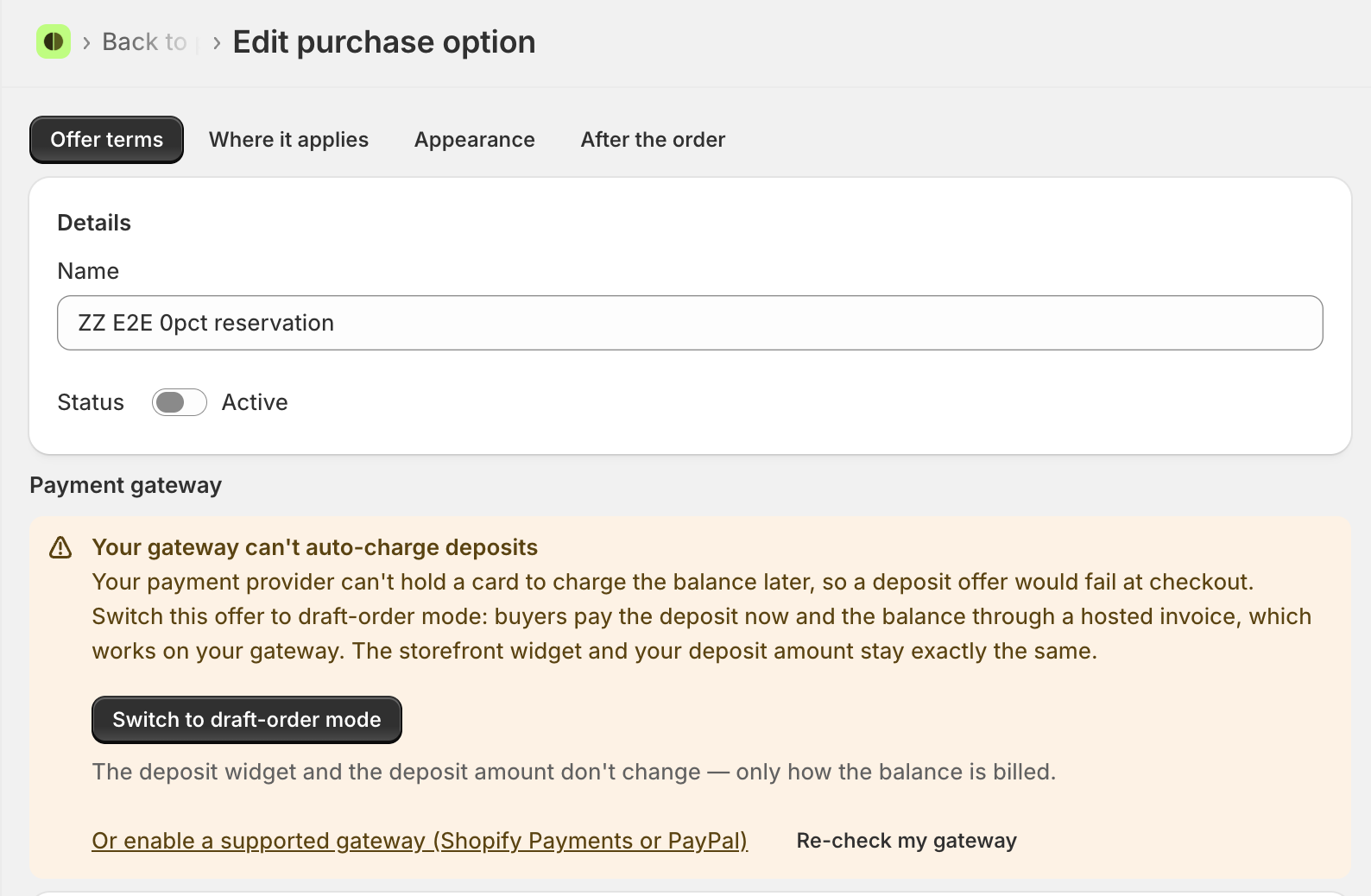
Some payment gateways, like PayFast and Mollie, can't save a card for later. On these stores, a deposit used to fail at checkout.
Now you can use draft-order mode. The buyer pays the deposit at checkout, then gets an email with an invoice for the rest. The widget and your deposit amount stay the same.
When you create an offer, the app checks your gateway. If it can't charge a saved card, you see a Payment gateway section with a button to create the offer in draft-order mode.
Where to find: Purchase options → Create purchase option → Offer terms → Payment gateway → Create in draft-order mode
If your gateway isn't detected, you can still switch by hand: Offer terms → Deposit mode → Using another payment provider? Switch to draft-order mode
📅 Buyers choose a pickup date
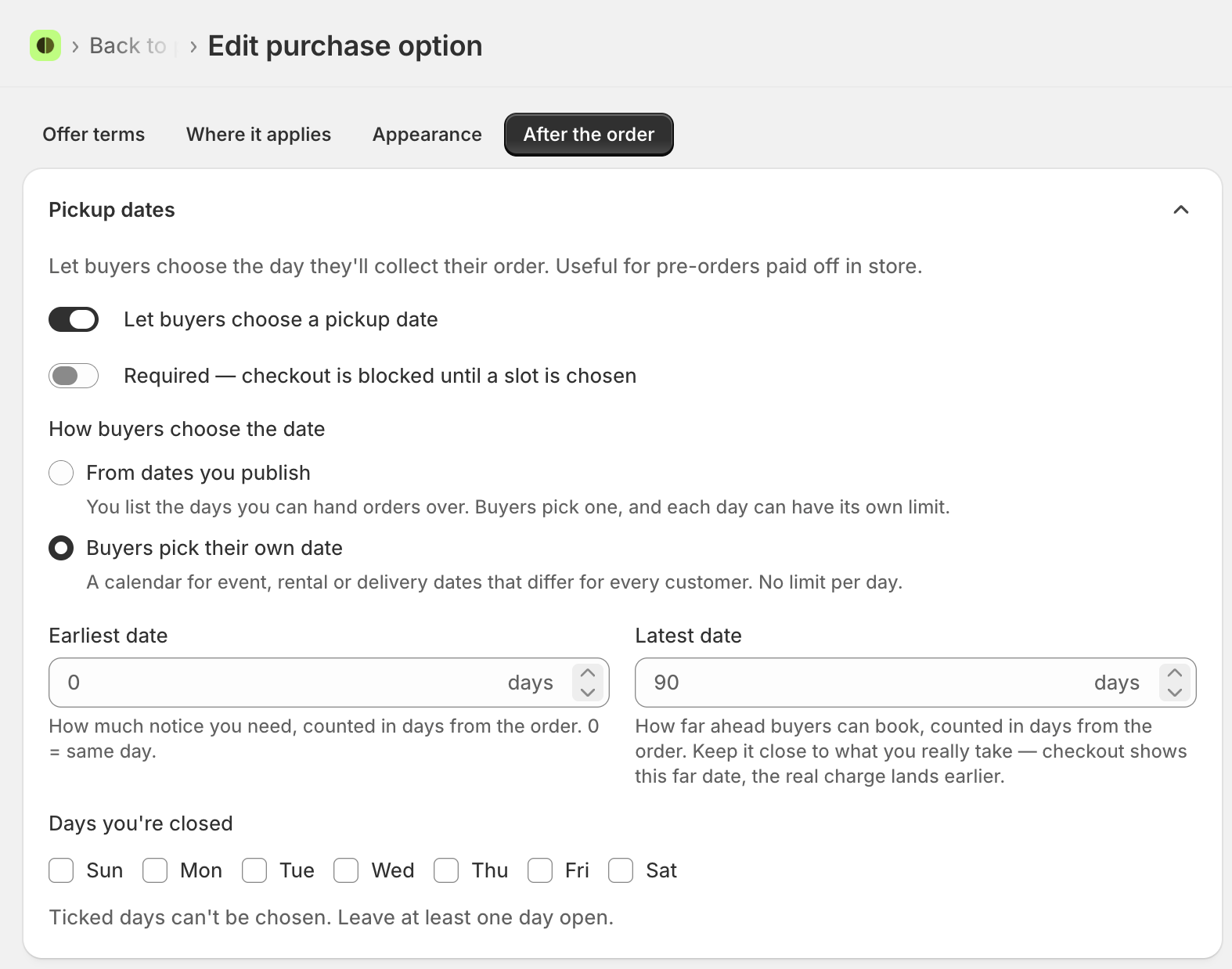
Buyers can now pick a pickup or delivery date when they order. You can set it up in two ways:
Date slots with a limit. Use this if you hand over orders on set days. When a slot is full, buyers can't pick it.
Any date in a range. Use this for weddings, rentals, or delivery on a day the buyer picks.
The date is saved on the Shopify order, and you can see it in your orders list.
Where to find: Purchase options → your offer → After the order → Pickup dates → Let buyers choose a pickup date
⏰ Charge the balance a few days before pickup
You can now charge the balance a set number of days before the buyer's pickup date. It counts back from the date the buyer picked, not the order date. Enter 0 to charge on the pickup day itself.
Pickup dates need to be turned on for this option to work.
Where to find: Purchase options → your offer → Offer terms → A number of days before the pickup date
🛒 One deposit for the whole cart
You can now take one deposit for the whole order, for example €50 for the whole cart, instead of a deposit on each item. Only one cart offer can be live at a time, and your product page offers keep working.
Where to find: Purchase options → your offer → Where it applies → Assign to → Cart (whole order)
📦 Hold fulfilment until the balance is paid
When this is on, the order stays On hold in Shopify until the balance comes in. The hold lifts by itself when the money arrives, and you can release it early if you need to. This way, you never ship an order that isn't paid.
Where to find: Purchase options → your offer → Offer terms → Fulfilment → Hold fulfilment until the balance is collected
💳 0% deposit reservations
You can now set the deposit to 0. The buyer's card is saved at checkout, but nothing is charged. The full amount is charged when you fulfil the order.
This works only when the balance is charged on fulfilment.
Where to find: Purchase options → your offer → Offer terms → set the deposit to 0
⏸️ Pause and resume balance charges
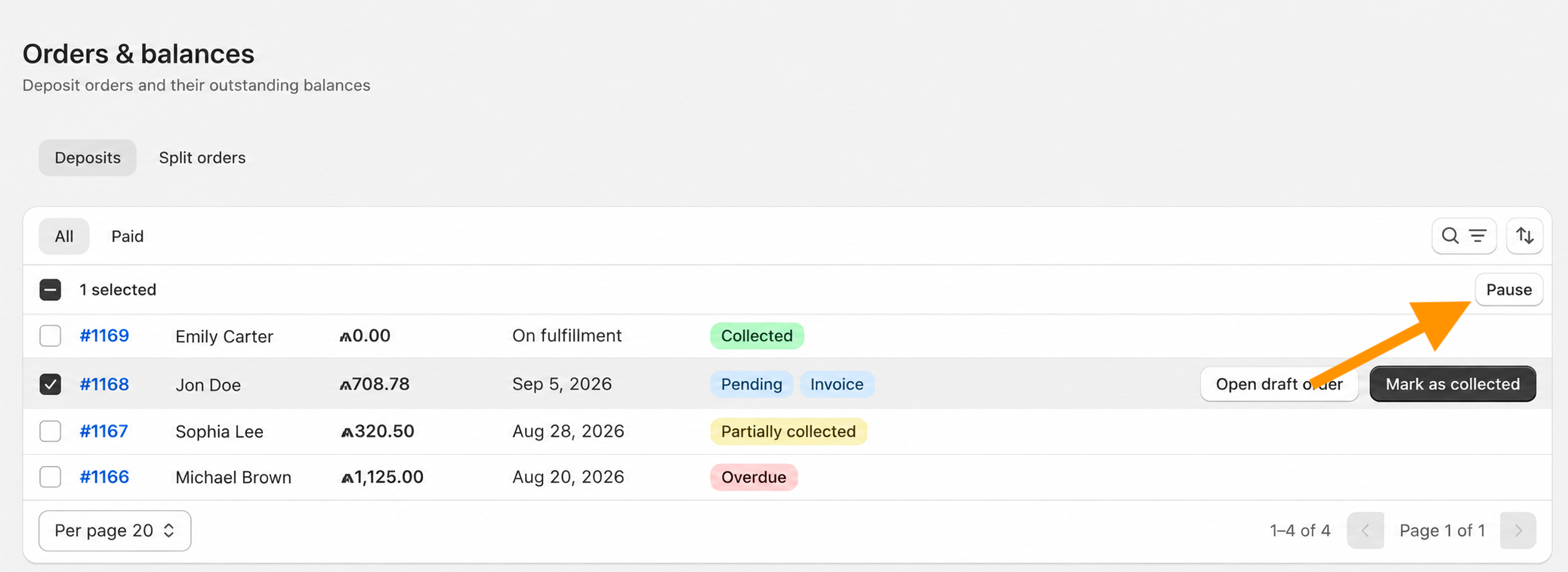
You can now pause a balance. While it's paused, the app doesn't charge, retry, or send reminders. Resume it when you're ready. You can also pause many balances at once.
Where to find: Orders & balances → select a balance → Pause
👤 Limit deposit orders per customer
Set a limit on how many units one customer can buy with a deposit. This stops one person from reserving a big part of your stock with a small deposit. The limit is checked for signed-in customers.
Where to find: Purchase options → your offer → Where it applies → Max per customer
✏️ Write your own checkout text
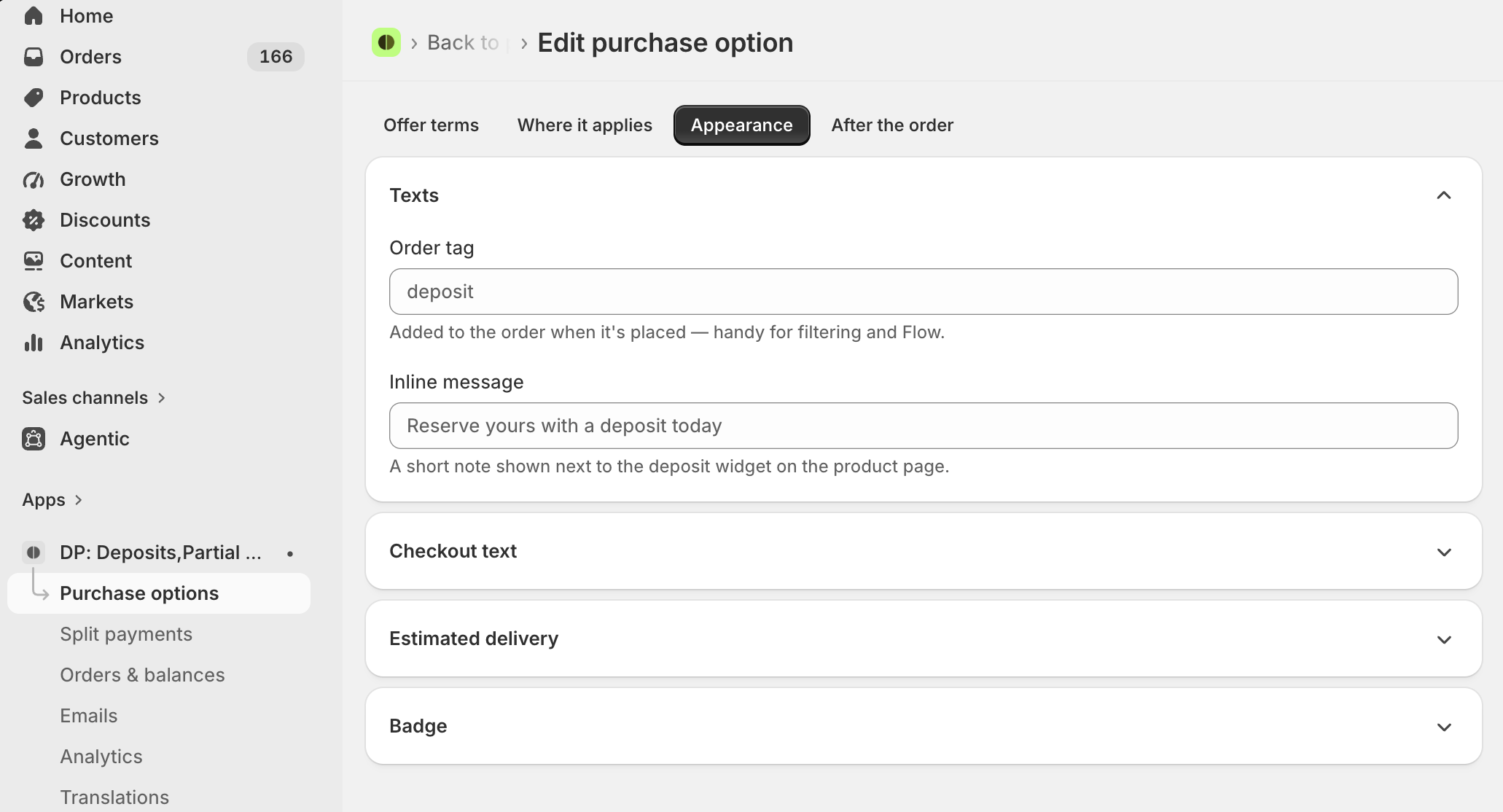
You can now edit the plan name that buyers see under the item at checkout. You can also edit the balance note on the product page and in the cart. A live preview shows what buyers will read.
Where to find: Purchase options → your offer → Appearance → Checkout text
🔄 Due date stays in sync with Shopify
If you change the payment due date on an order in Shopify, the app picks up the new date by itself.
Where to find: No setup needed. It works on all deposit orders with a single balance.
🧩 Works with product option and price calculator apps
If you use apps like Globo, Easify, Calculator AI or Appointo, the deposit is now created from the final cart. Your theme and those apps add the item first, so the right price and add-ons are included.
Where to find: Settings → Storefront → Let the theme add to cart first
🛍️ Keep buyers on the cart page
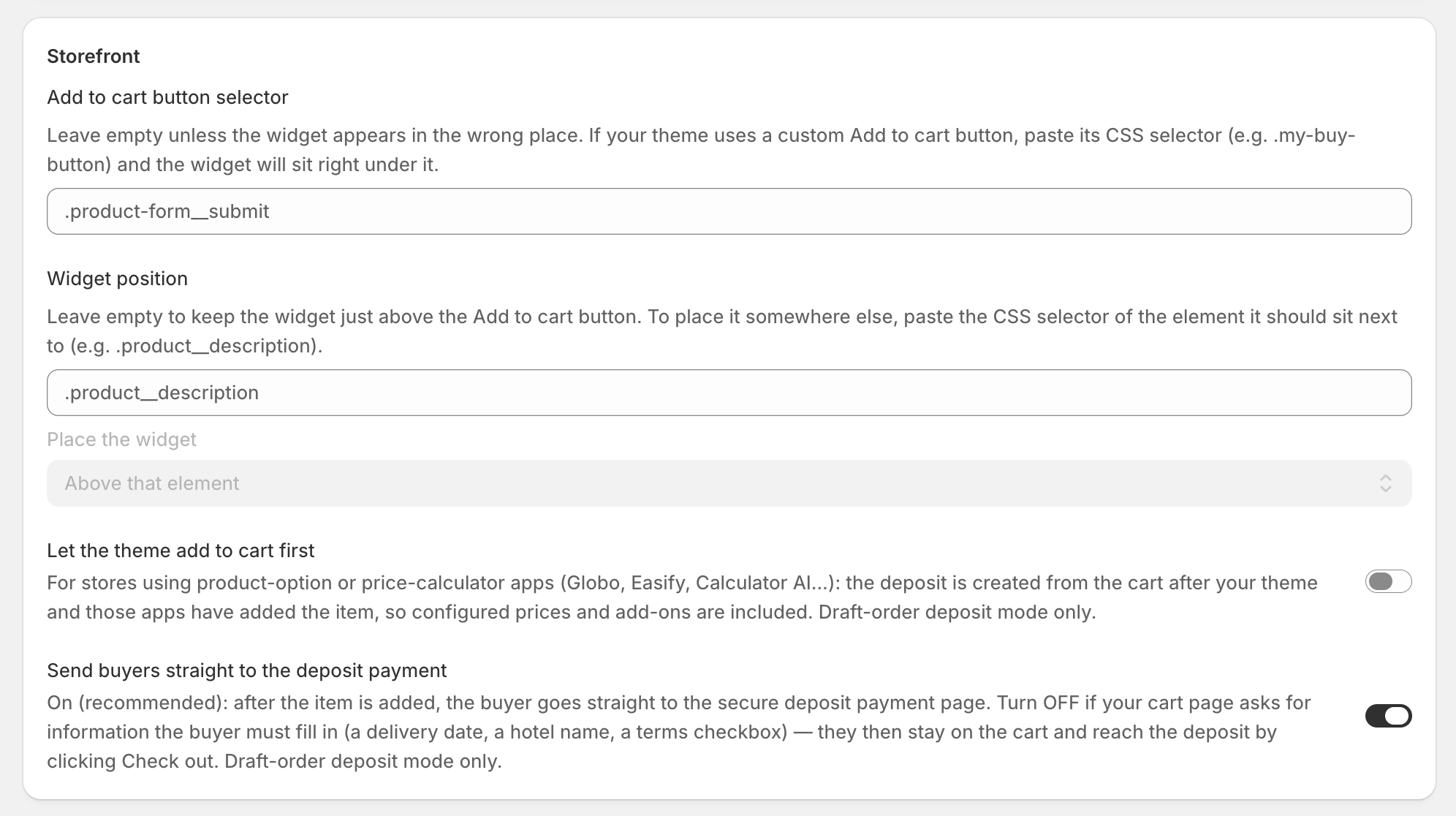
Some cart pages ask buyers to fill something in, like a delivery date or a terms checkbox. Turn this setting off, and buyers stay on the cart. They reach the deposit payment when they click Check out.
Where to find: Settings → Storefront → Send buyers straight to the deposit payment
📍 Choose where the widget shows
You can now place the deposit widget next to any part of your product page. Paste the CSS selector of that element, and choose to show the widget above or below it.
Where to find: Settings → Storefront → Widget position
🙋 Buyers cancel orders from their account
Buyers can now cancel an open deposit order from their store account, and the Shopify order is cancelled too. The deposit is refunded only if your offer allows it.
In the portal, each order shows as one card with the product photo and name, even when the balance is split into several payments.
Where to find:
Add the portal: Home → Setup guide → Add the buyer payment portal
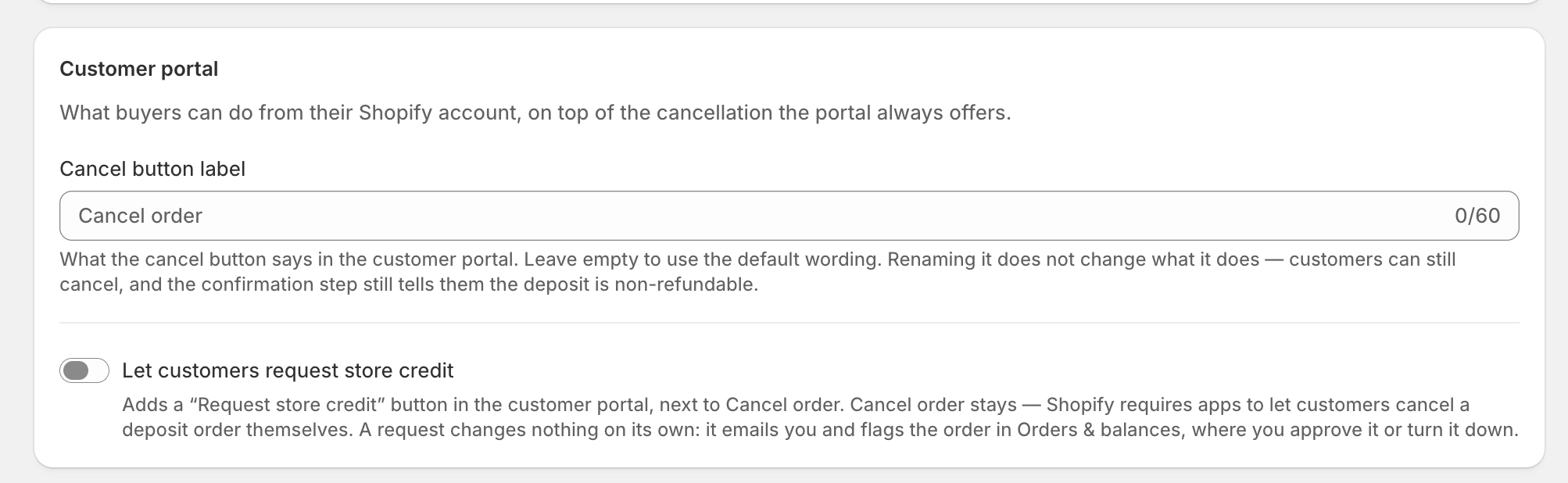
Rename the cancel button: Settings → Customer portal → Cancel button label
Refund on cancel: Purchase options → your offer → Offer terms → Refund policy → Auto-refund the deposit if the order is cancelled
🎟️ Buyers can request store credit
You can add a Request store credit button to the customer portal. Buyers use it to ask you to turn what they've paid into store credit. The request doesn't change anything by itself. You get an email, and the order is flagged in Orders & balances so you can approve or decline it.
Where to find: Settings → Customer portal → Let customers request store credit
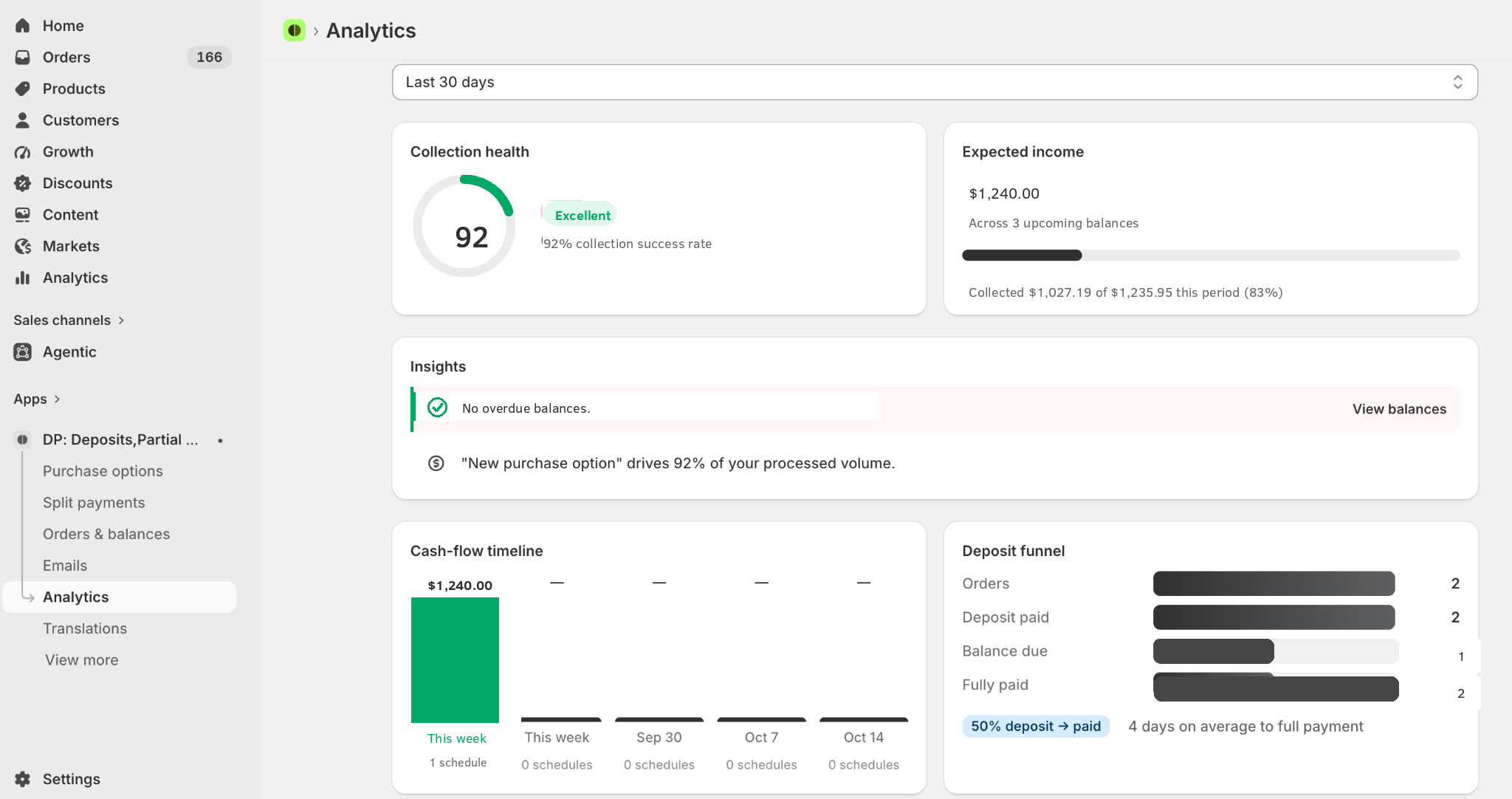
📊 Analytics on every plan
Analytics is now free on every plan. See how well your balances are being paid, how many deposit orders get fully paid, and how much income to expect each week.
Where to find: Analytics
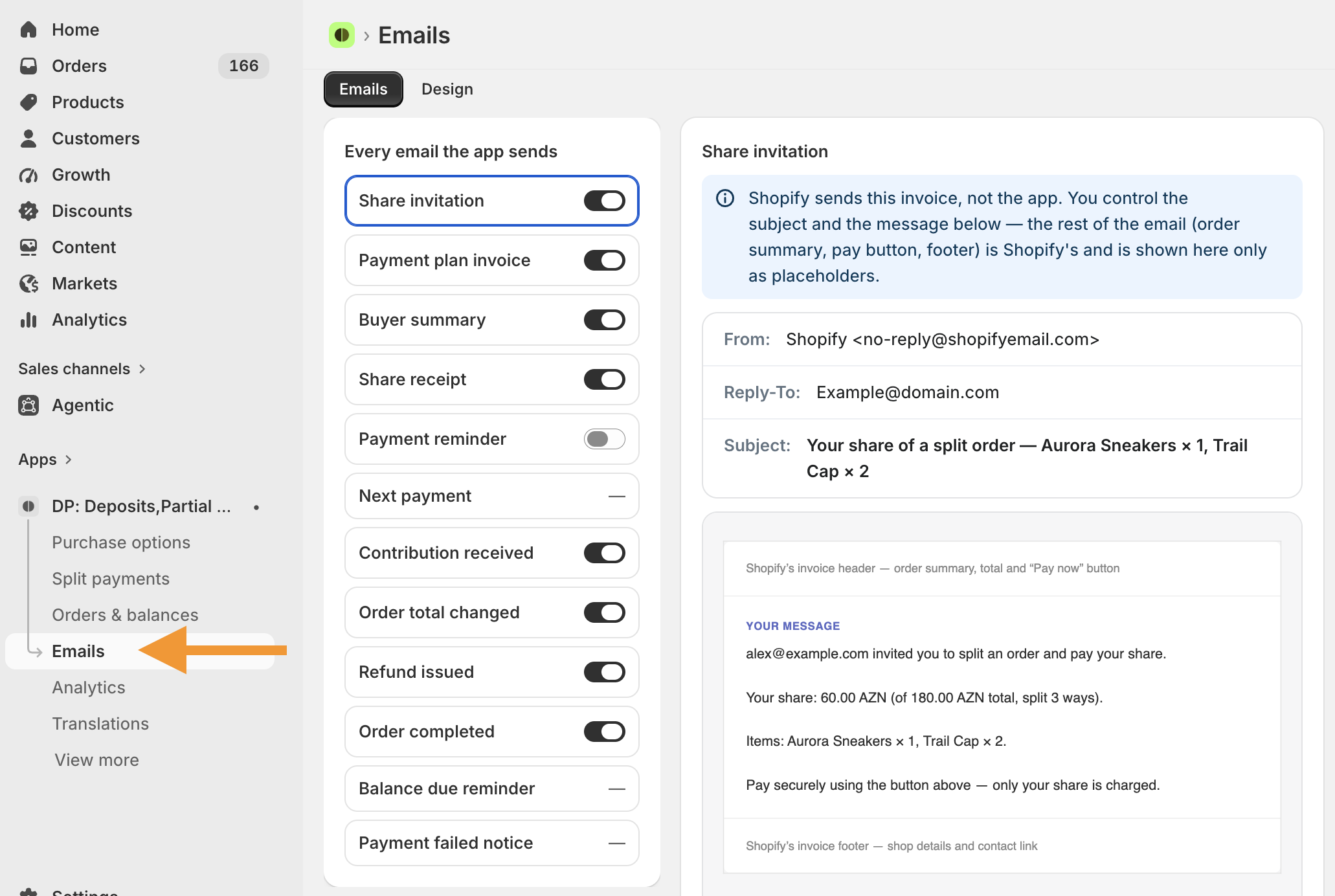
📧 All emails in one place
Every email the app sends is now in one list. You can change the wording, the design (logo, colors, button) and the language, and turn each email on or off. The Free plan sends the standard emails. The Pro plan lets you customize them.
Where to find: Emails
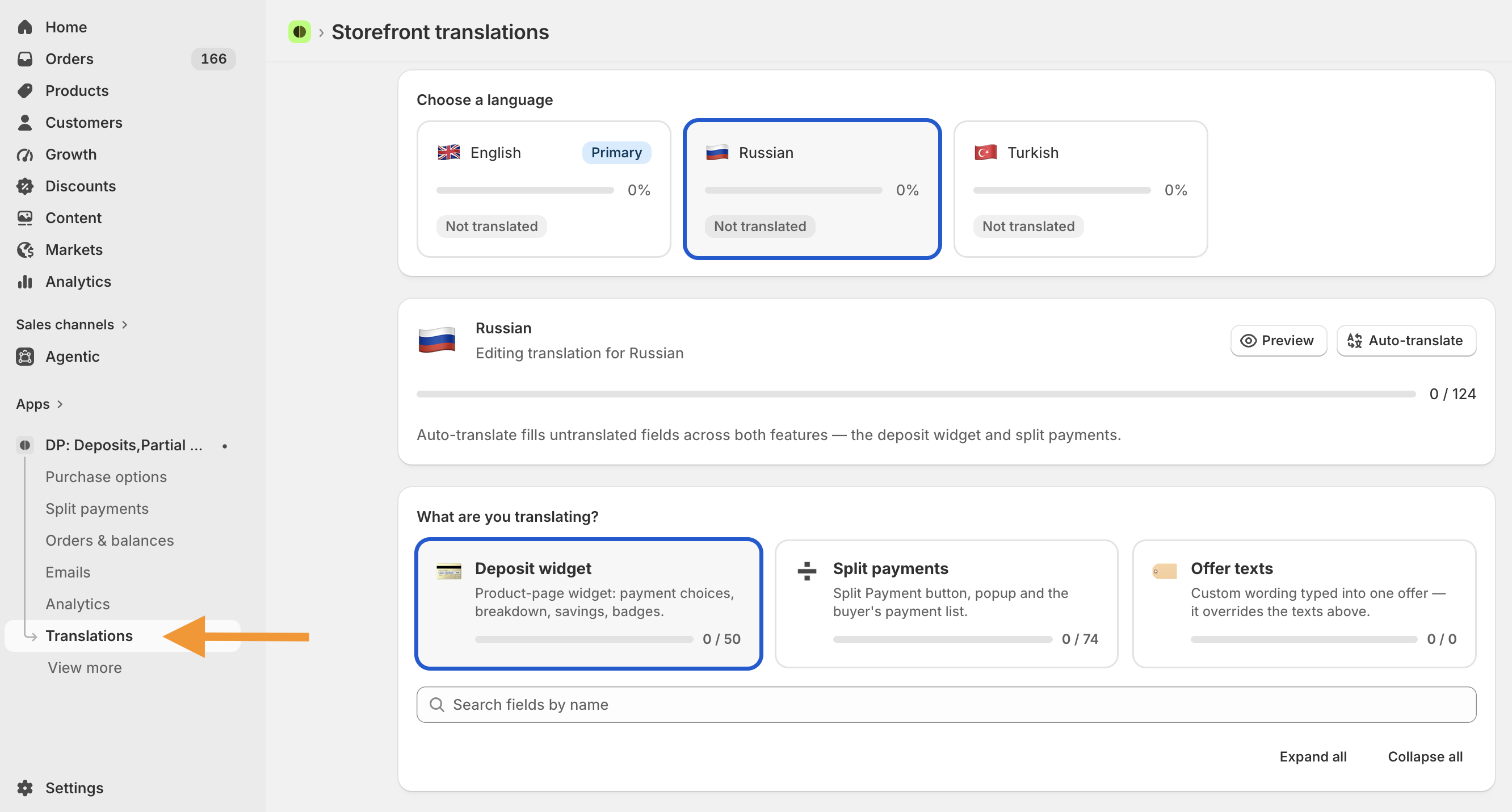
🌍 Storefront translations
All widget and split payment text is now in one screen, with progress for each store language. Click once to auto-translate anything that's missing. Offer labels and discount names you wrote yourself can be translated too.
Where to find: Translations
Sep 8, 2026
🗓️ Split payments: installments by order total
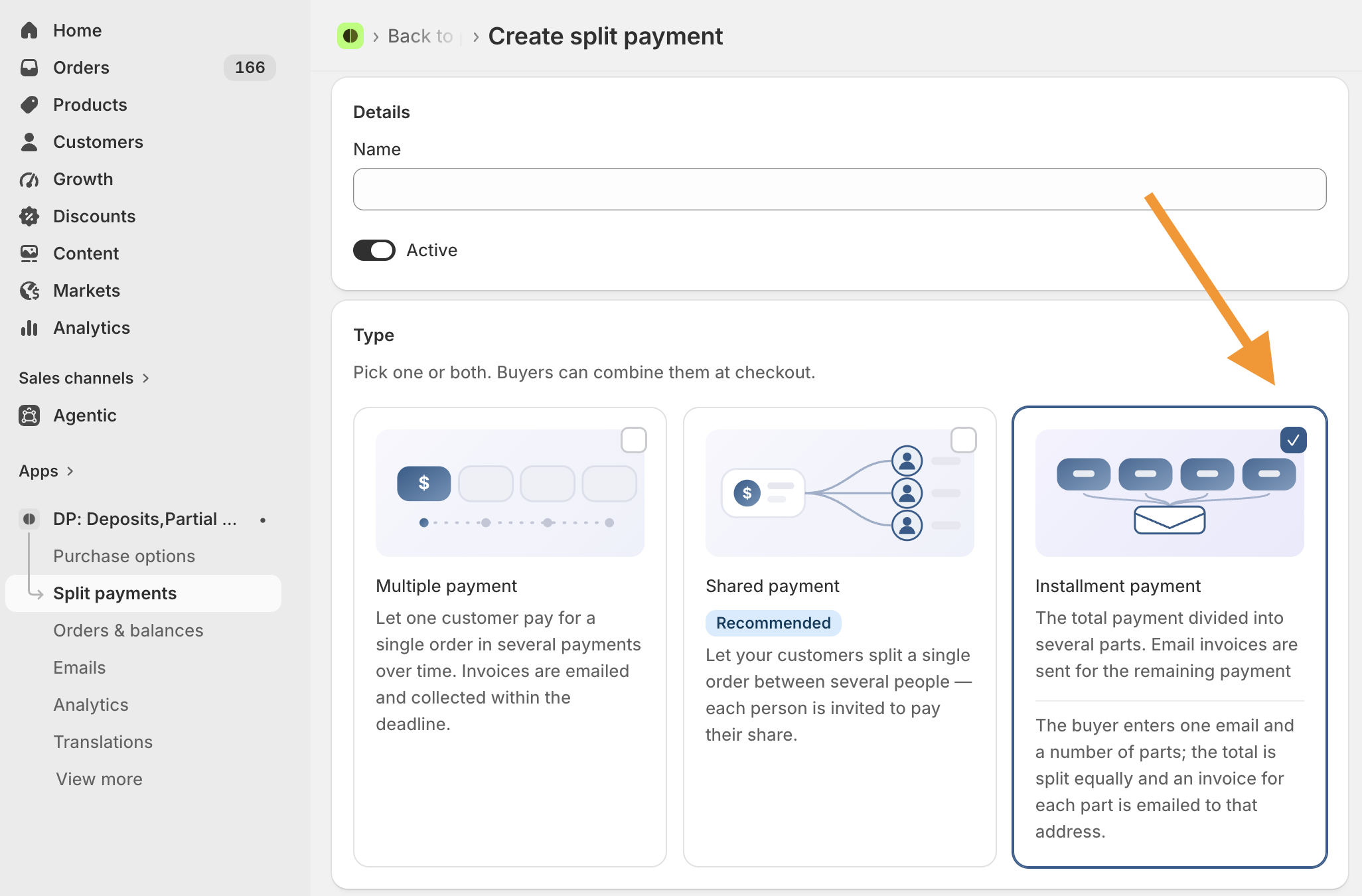
You can now offer installment plans based on how much the order is worth. For example, orders from $500 can pay over 6, 8 or 12 weeks, weekly or every two weeks. The buyer picks a term, and the app splits the total into equal payments with set dates.
You can also take a deposit when the order is placed and collect the rest on the plan.
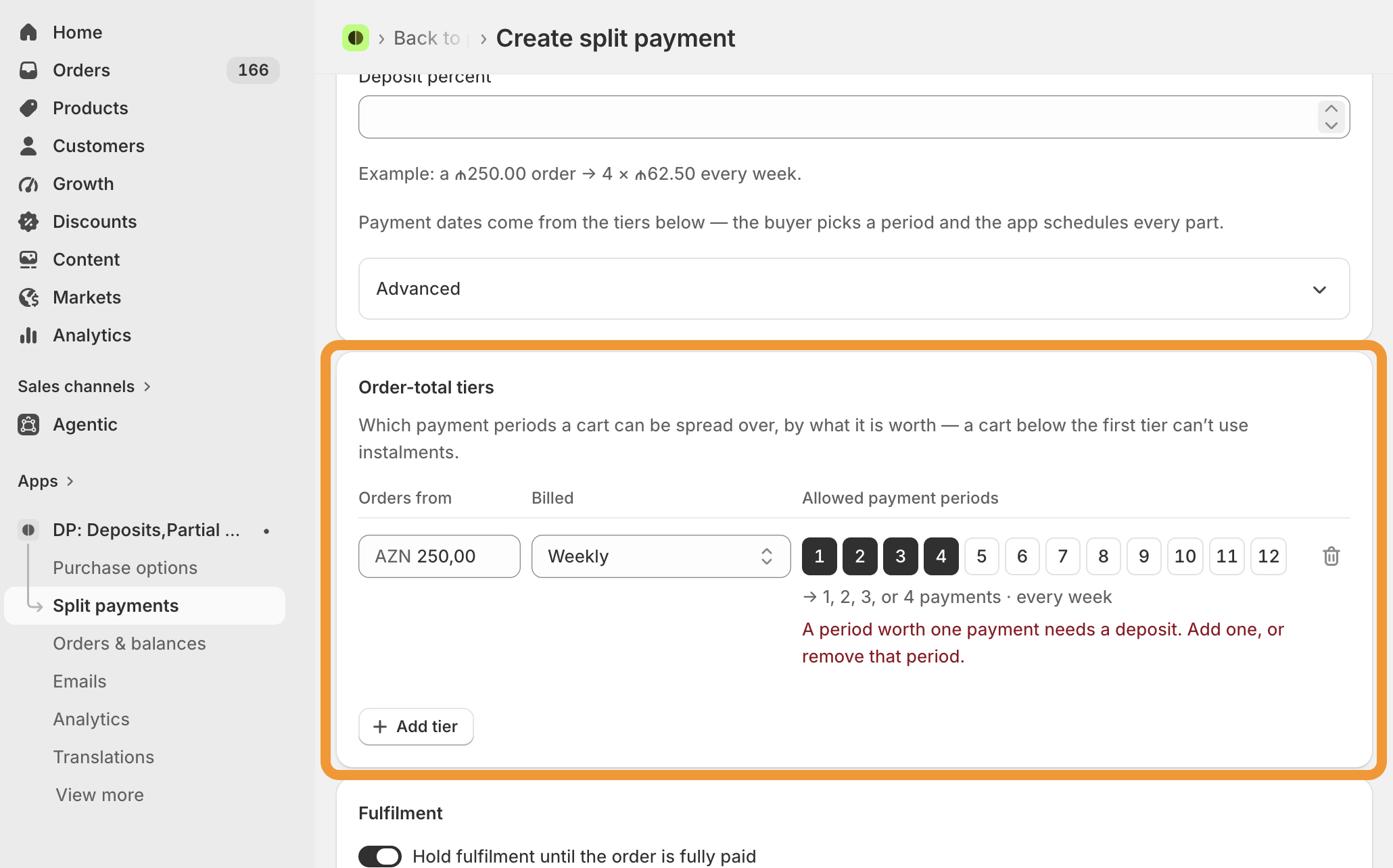
Where to find: Split payments → Create split payment → Offer terms → tick Installment payment under Type. The Order-total tiers and Deposit sections then show up below.
🤝 Friends and family can chip in
Buyers can share a link so family and friends can pay any amount toward the order. The rest of the payments update after each one.
Where to find: Settings → Notifications → New split orders accept contributions
⚖️ Change the order total after the order
If the final price changes, for example after you weigh the meat, you can update the order total. Open payments are worked out again, any extra payment is recorded, and the buyer gets an email.
Where to find: Split payments → Orders → open an order → Adjust order total
💸 Refund an overpayment in one click
If a buyer paid more than the order total, you can send the extra back in one click. The money returns to the card that paid it.
Where to find: Split payments → Orders → open an order → Refund the overpayment
📨 Send each invoice when it's due
Instead of sending every invoice when the plan starts, the app can send each one when it's due. Buyers can still pay any part early. This is the default for new stores.
Where to find: Settings → Notifications → Installment invoices → Email each invoice when it's next due
📦 Hold fulfilment until the plan is paid
The fulfilment hold now works for split payments too. The order stays On hold in Shopify until every payment is in.
Where to find: Split payments → your split payment → Fulfilment → Hold fulfilment until the order is fully paid
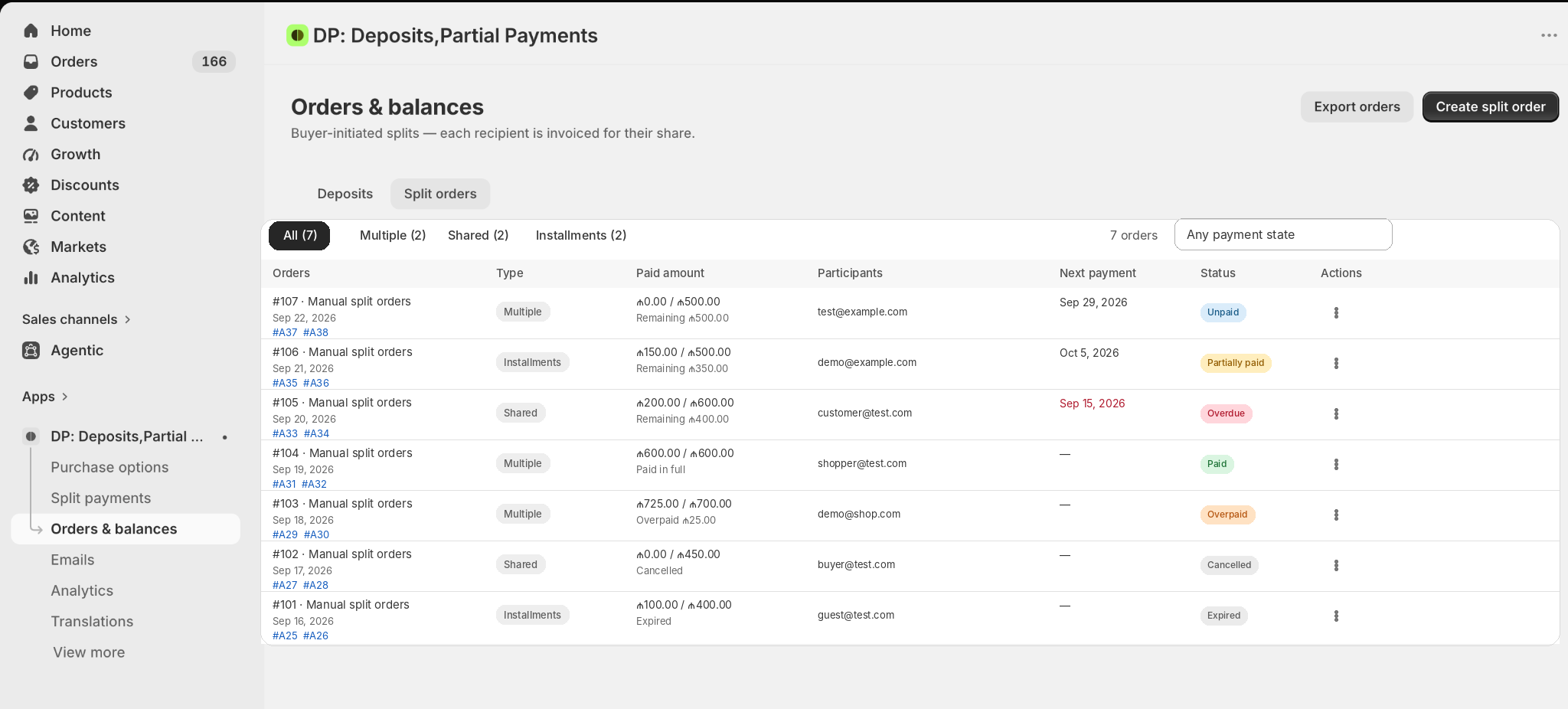
📋 New split orders table
See every split order in one table. It shows the type, how much is paid and left, the next payment, and the status: overdue, partial or overpaid. You can filter by type and status, and export the list.
Where to find: Split payments → Orders