A Shop the Look bundle lets you group complementary products together and display them as a widget on any product page.
Shoppers can add the entire look to their cart in one click — and you can sweeten the deal with a bundle discount (percentage or fixed) to push them over the line.
This guide walks you through creating a bundle from start to finish.
Step 1: Open the Bundle Creator
From your Shopify admin, open the Shop the Look app. On the dashboard, you'll see two options under Get started with bundles:
AI-Powered Bundle (Recommended) — Select one anchor product and the AI automatically finds the best matching companions from your catalog.
Manual Bundle — Hand-pick every product yourself for full creative control.
If you started with Create AI Bundle, AI Matching is pre-selected. If you started with Create Manual Bundle, Manual is pre-selected. You can switch between the two at any point.
Click Create AI Bundle or Create Manual Bundle to proceed.
Step 2: Name Your Bundle
In the Bundle details section, enter a Bundle title. This is for your internal reference only — customers won't see it.
💡 Tip: Use a descriptive name like "Summer Beach Look – Linen Dress" so you can easily identify it in your bundle list later.
Step 3: Select Your Anchor Product
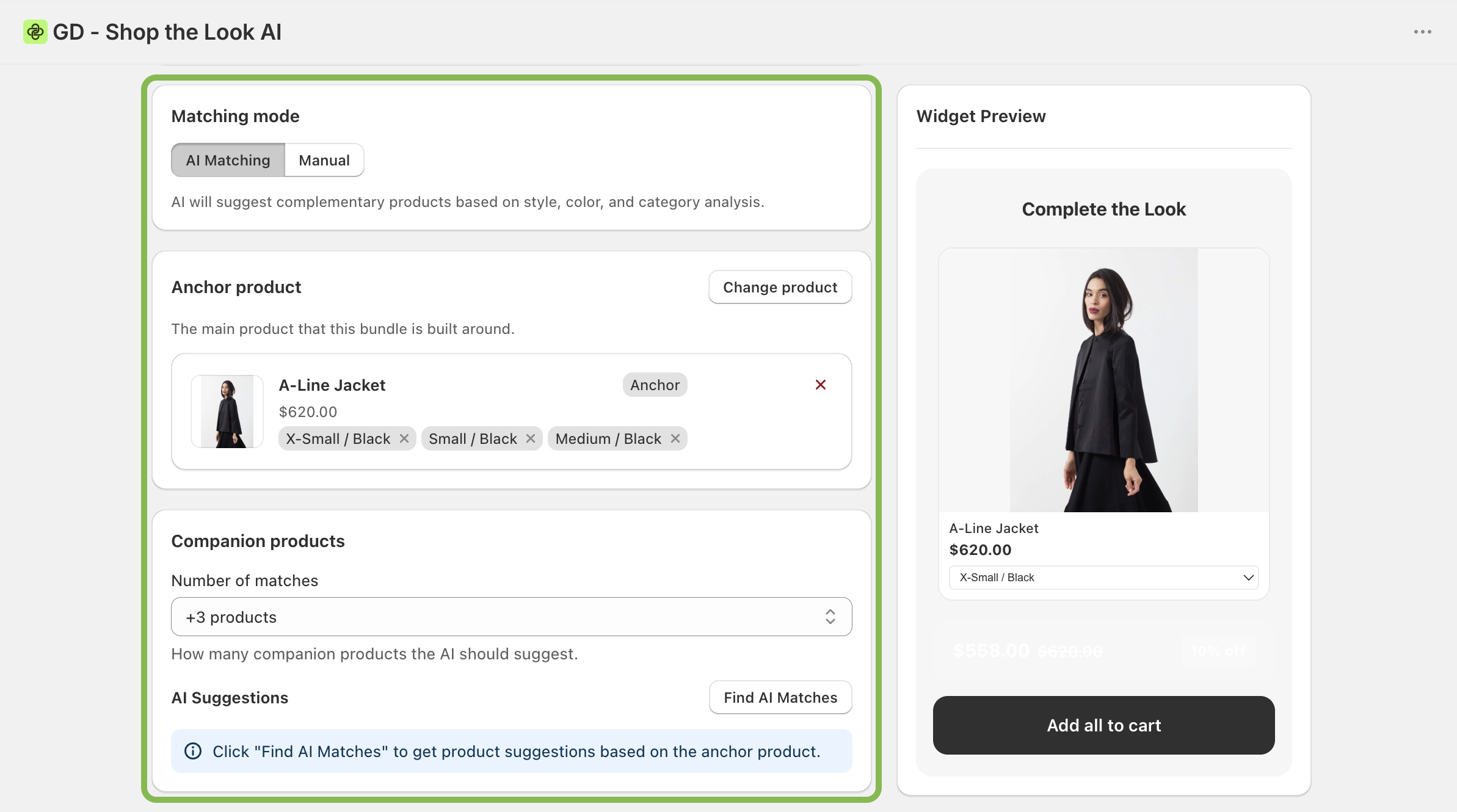
In the Anchor product section, click Select product and choose the main product this bundle is built around.
The Shop the Look widget will appear on this product's page. Think of the anchor as the hero item — the one customers are already browsing when the widget appears.
Step 4: Add Companion Products
In the Companion products section, click Add product to select the items you want to display alongside the anchor.
AI mode: The AI will suggest companions automatically based on your catalog. You can review and adjust these.
Manual mode: Select each companion product one by one.
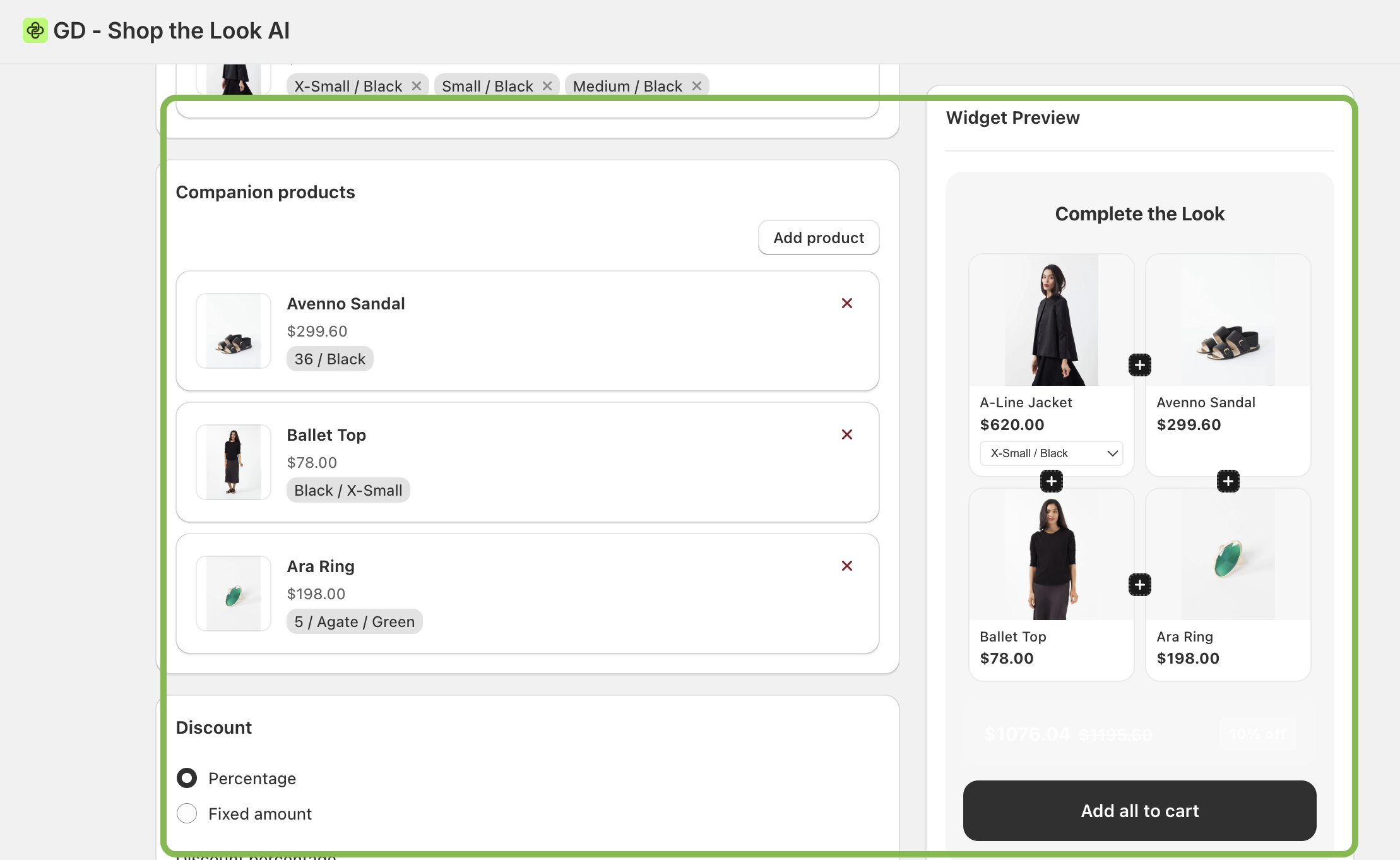
💡Tip: Aim for two to four companion products. Too few makes the widget feel thin; too many can overwhelm the customer.
Step 5: Set Up a Discount (Optional)
In the Discount section, you can offer an incentive for buying the full bundle together.
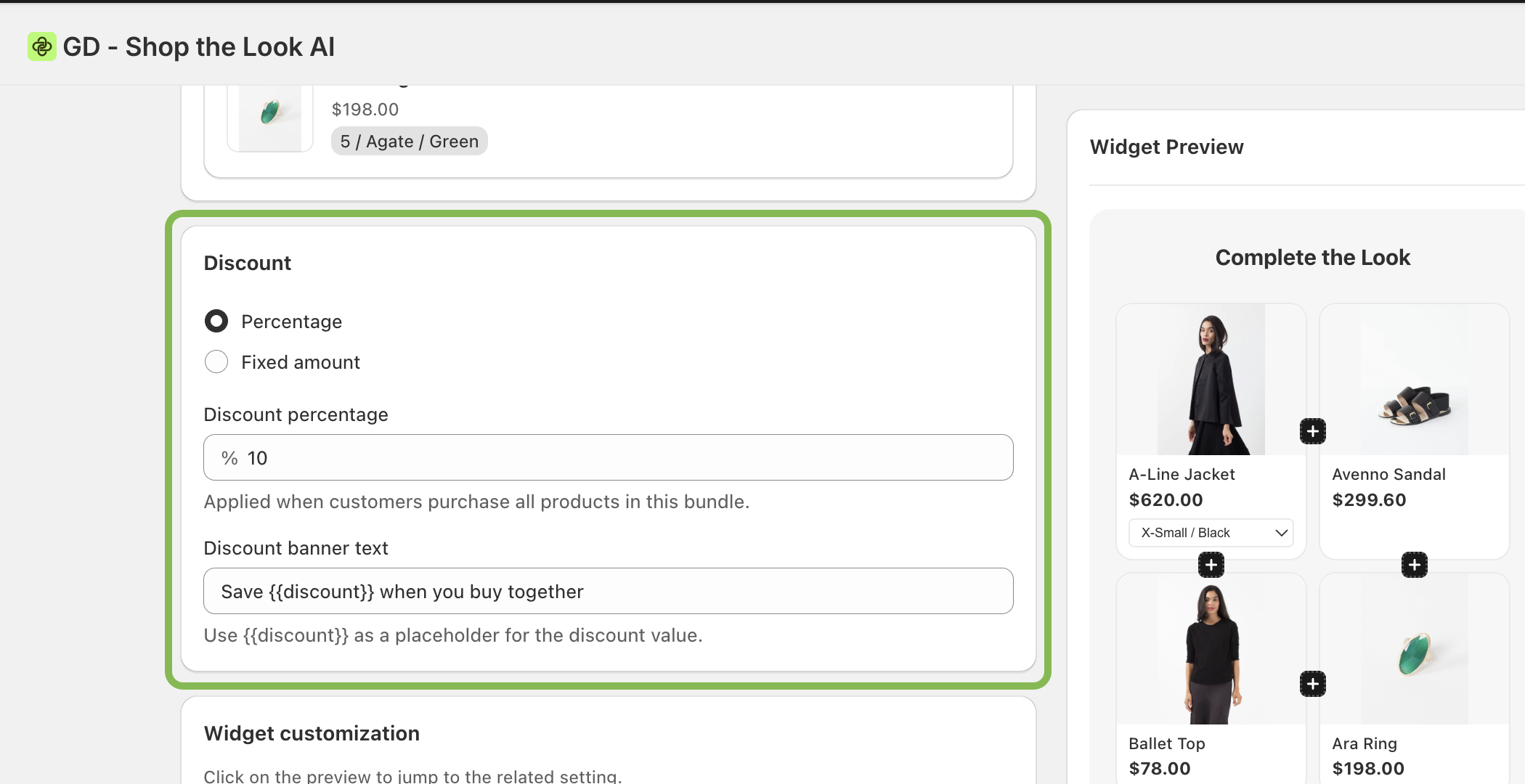
Choose a discount type:
Percentage — e.g. 10% off the total bundle
Fixed amount — e.g. $5 off when buying together
Enter your discount value in the Discount percentage (or amount) field. The discount is applied when a customer adds all products in the bundle to their cart.
Add a discount banner:
In the Discount banner text field, write the message you want to appear on the widget. Use {{discount}} as a placeholder — Shop the Look will automatically fill in the value.
Default: Save {{discount}} when you buy together
You can customize this to match your store's tone — for example: Buy the full look and save {{discount}}!
Step 6: Customize the Widget Appearance
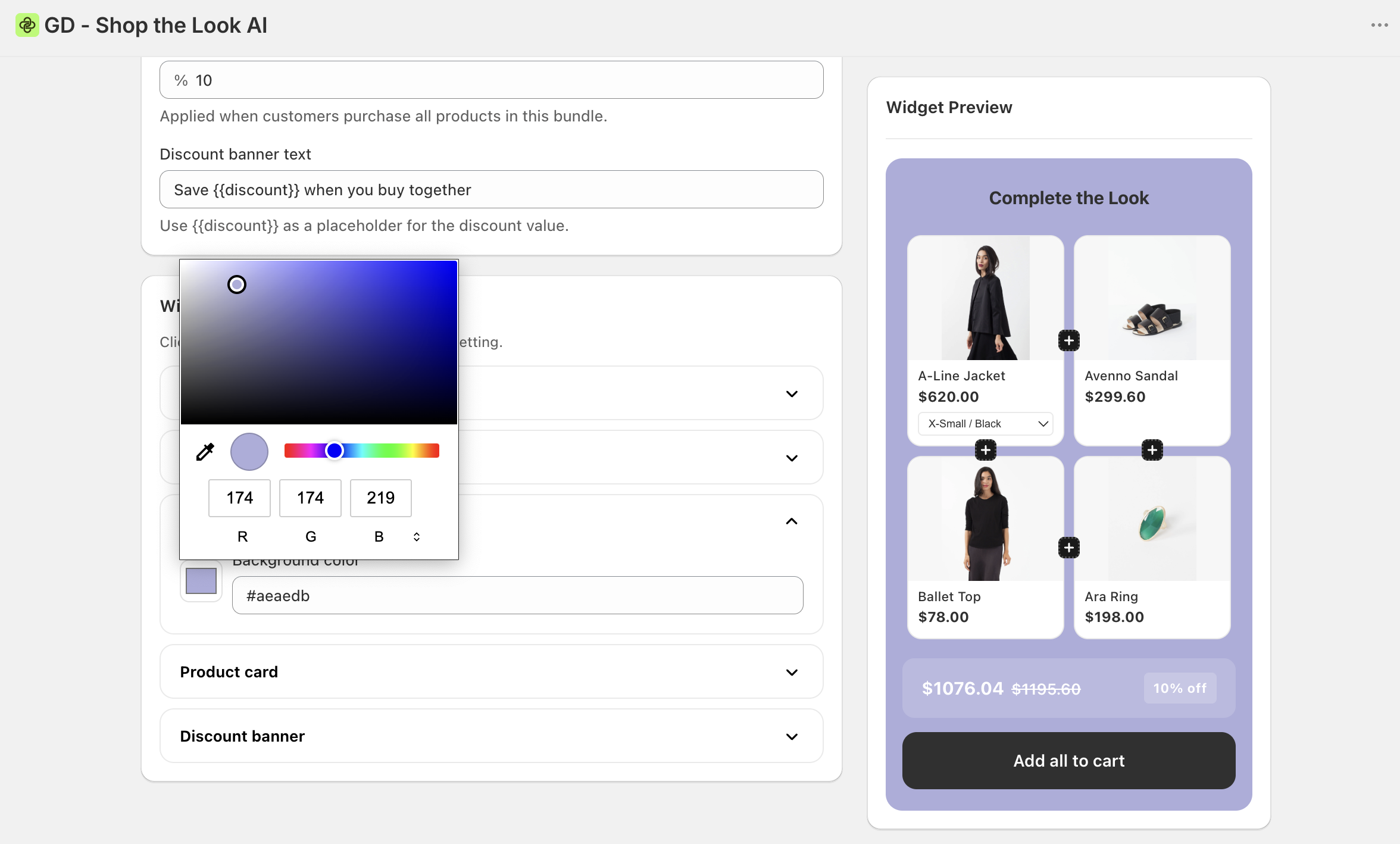
In the Widget customization section, you can control exactly how the bundle widget looks on your storefront. Click any element in the live Widget Preview on the right side of the screen to jump directly to that setting.
Section | What you can customize |
|---|---|
Title | The heading displayed on the widget (e.g. "Complete the Look") |
Button | The "Add all to cart" button text, color, and style |
Widget background | Background color and style of the widget container |
Product card | How each product is shown inside the widget |
Discount banner | The visual styling of the savings message |
Use the live preview to check how your changes look before saving.
Step 7: Save and Activate
Once you're happy with your bundle, click Save Bundle in the top right corner.
Before the widget goes live on your storefront, make sure both of the following are active on your dashboard:
✅ App status — Activate the app embed to allow widgets to display on your store
✅ App block — Add the Shop the Look block to your product pages via the Shopify theme editor
Need Help?
📩 Contact Support: Reach out to us via live chat on the app dashboard or write an email to support@grinduck.com. We'll be happy to assist.