What is the customer portal?
The customer portal is a page Depositly adds to your store's customer account. Buyers sign in to their account and open the page to see every order they're paying off with a deposit, installments or a split payment.
From there, buyers can check what's left to pay and when it's due. They can also pay early, update their card, or cancel an order without contacting you.
This saves you support time. Most "how much do I still owe?" and "can I change my card?" questions get answered by the buyer on their own.
Before you start
The portal works with Shopify's new customer accounts. If your store still uses the legacy (classic) customer accounts, buyers won't see the page.
You can check this in Shopify admin → Settings → Customer accounts.
Add the portal to your store
The portal isn't visible until you add it to the customer account menu. It only takes a minute.
In Depositly, go to Home and find the Buyer payment portal card.
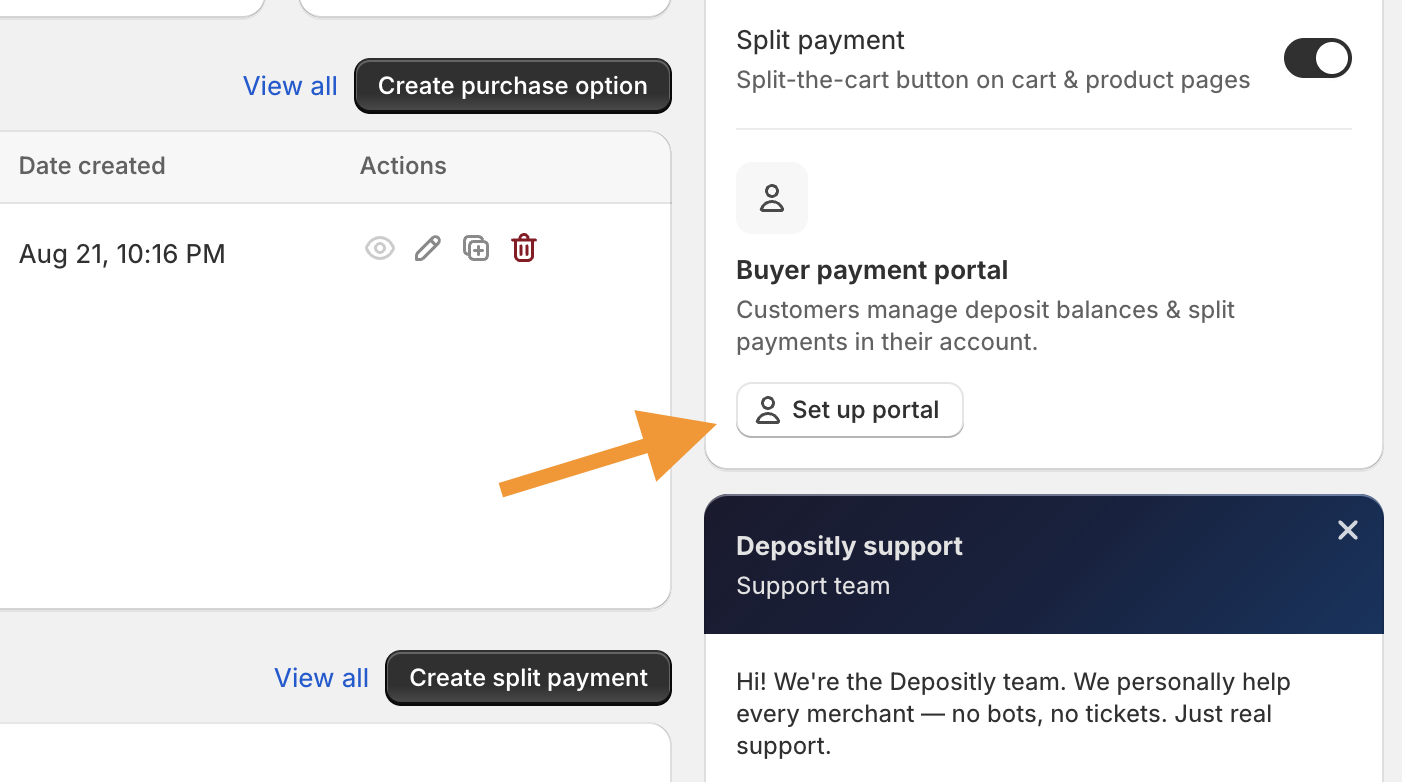
Click Set up portal, then click Open accounts editor.
In the editor, go to Apps and add the Depositly Payments & plans page to the Accounts menu.
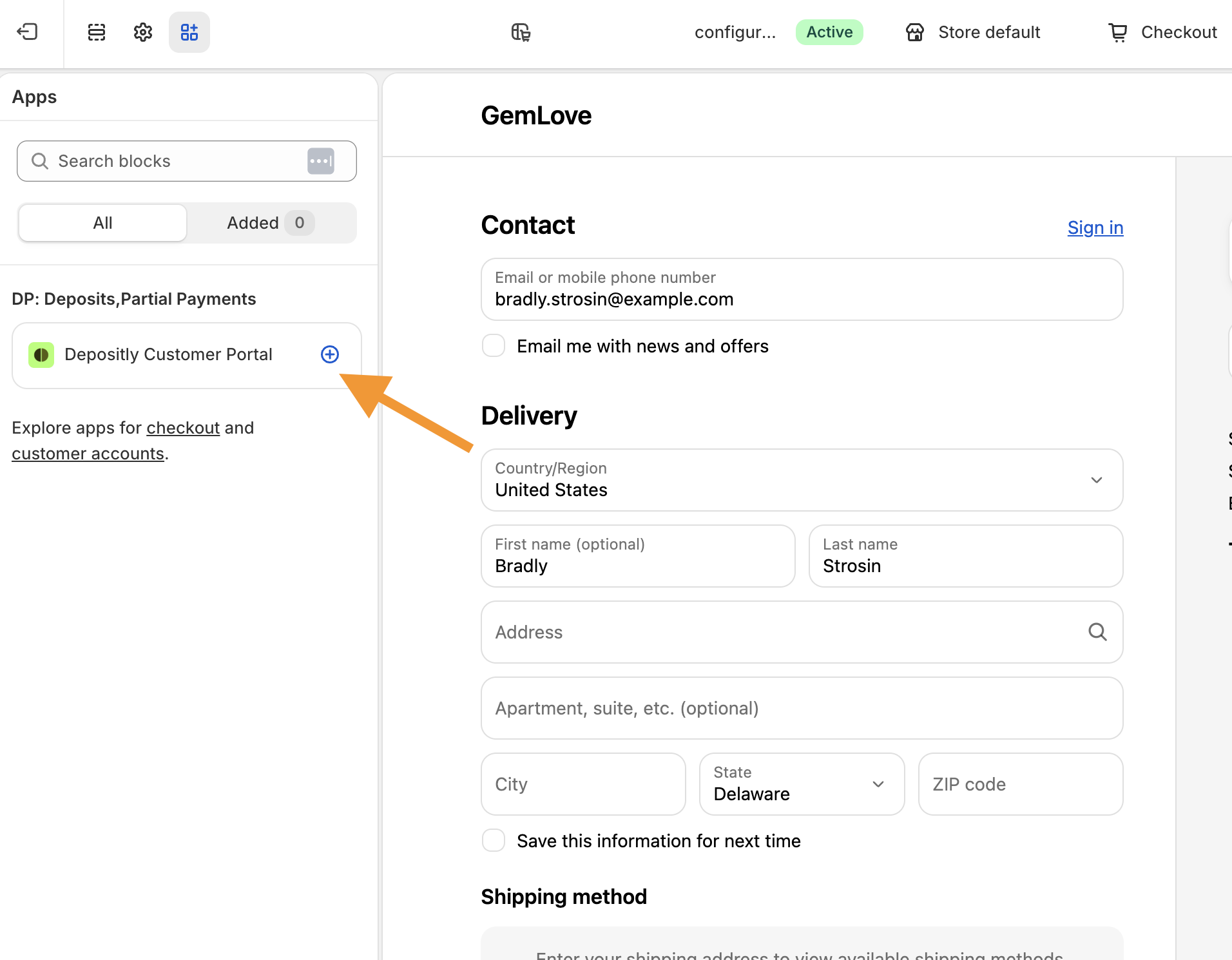
Click Save.
Buyers now see a Payments & plans link when they sign in to their account.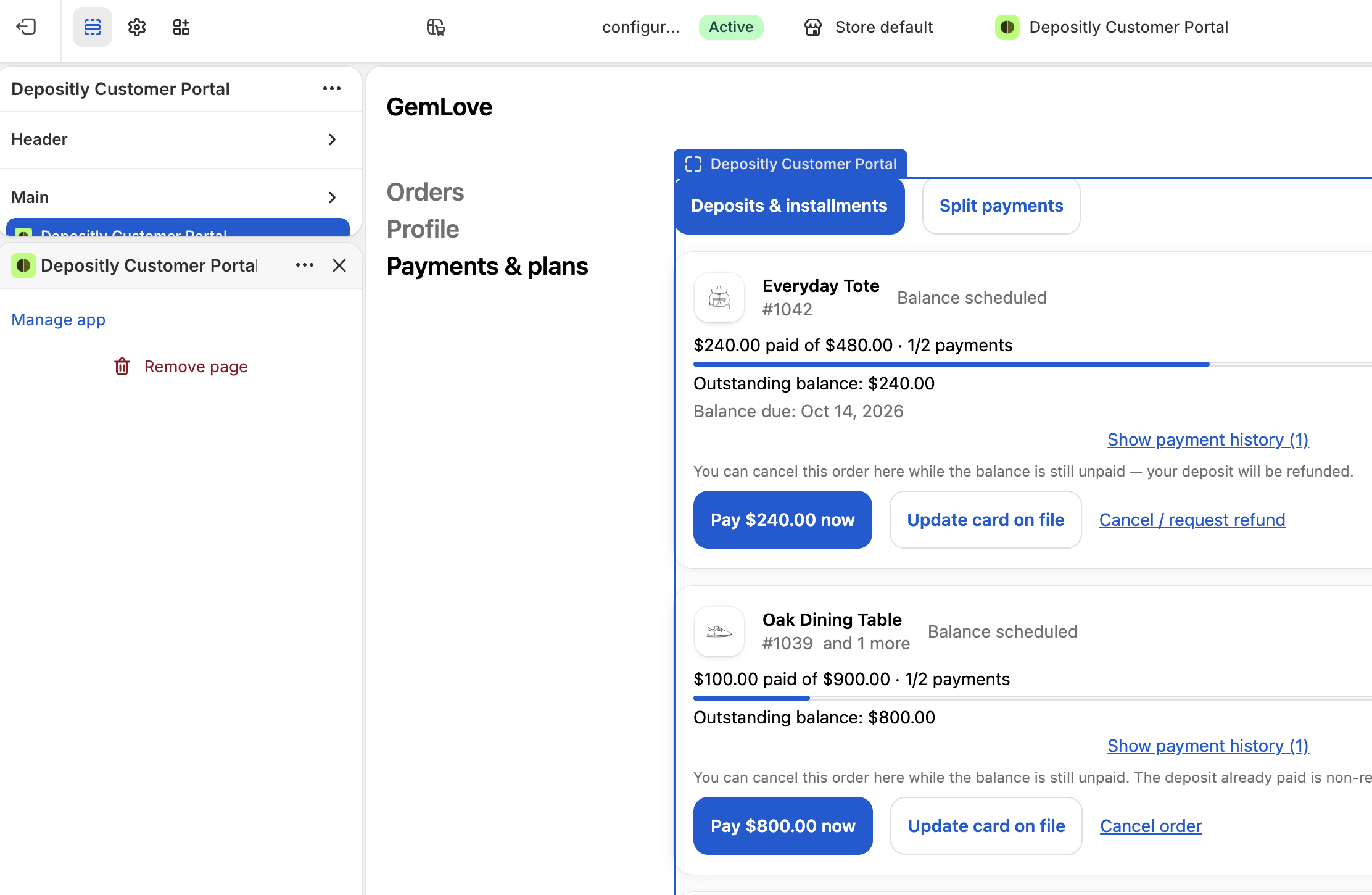
Tip: While you're in the accounts editor, the page shows sample orders. This lets you see how the portal looks before any buyer has a real order. Buttons don't do anything in this preview.
What buyers see
The page has two sections:
Deposits & installments for orders placed with a purchase option.
Split payments for orders paid through several invoices, or shared between several people.
Each order shows as one card. If a buyer has more than 10 orders in a section, they can click Load more.
If the buyer has no orders with a balance, the page says so with a short message.
Deposit and installment orders
Each deposit card shows:
The product photo and name. If the order has more items, it adds "and 2 more", for example.
The status, like Balance scheduled or Paid in full (see the table below).
Payment progress, for example "$240 paid of $480 · 1/2 payments", with a progress bar.
The next payment date and the date the order will be fully paid off.
Payment history. Buyers can open it to see the deposit, each payment, and any failed attempts. It's closed by default to keep the card clean.
Order statuses
Status | What it means |
|---|---|
Balance scheduled | The balance is set up and will be charged on its due date. |
Balance due | The balance is due now. |
Payment processing | A charge is running right now. |
Paid in full | Everything has been paid. |
Payment failed | The last charge didn't go through. The buyer should update their card. |
Cancelled | The order was cancelled. |
Split payment orders
Each split payment card shows the order total, how much has been paid, and how many shares are paid, for example "$600 paid of $1,200 · 1/2 shares".
Below that, it lists every share with who it belongs to and whether it's Paid or Awaiting payment.
An unpaid share has a Pay now link that opens its invoice.
A paid share has a View order link that opens the order status page.
This makes the portal useful for shared orders. The buyer can see who has paid and who hasn't, without asking you.
What buyers can do
The buttons on each card depend on the order, so buyers only see actions that will work.
Pay the balance early
When the balance is charged to a saved card, the buyer sees a Pay [amount] now button. It pays off everything that's still owed on the order in one go.
Since money moves, the buyer has to press the button twice to confirm. The charge then runs in the background, and the card shows "Payment started".
The button doesn't appear for orders where the app never charges the card. That includes offers with manual collection (cash on delivery or your own invoice) and offers in draft-order mode.
Pay a balance invoice
For offers in draft-order mode, the balance is paid through an invoice, not a saved card. In this case, the card shows a Pay the balance link that opens the invoice.
This gives the buyer a way to pay even if they lost the invoice email.
Update the card on file
When a balance will be charged to a saved card, the buyer sees Update card on file. This is the fastest fix after a failed payment.
Depositly never sees or stores card details. When the buyer clicks the button, Shopify either opens a secure page to update the card, or emails the buyer a secure link.
The button is hidden when there's no saved card to update, for example on draft-order mode offers.
Cancel an order
Buyers can cancel an open deposit order from the portal. Shopify requires this for apps that take deposits, so it's always available while the order can still be cancelled.
To avoid mistakes, the buyer has to press Cancel order twice. When they confirm:
All open balances on the order are cancelled, so nothing more is charged.
The Shopify order is cancelled too.
The deposit is refunded only if you allow it in the offer's refund policy (see below).
Every order also shows a short sentence that explains its cancellation rules. For example:
Cancel is available and the deposit is refunded: "You can cancel this order here while the balance is still unpaid. Your deposit will be refunded."
Cancel is available but the deposit is kept: "You can cancel this order here while the balance is still unpaid. The deposit already paid is non-refundable."
Too late to cancel: this shows when the balance has already been charged, or while a charge is running.
Split payments: buyers can't cancel these from the portal. The card tells them to contact the store.
On an installment order, the buyer can still cancel while any payment is open. Once the first payment is made, the rest can still be stopped.
Request store credit
This is an optional button you can turn on. It lets the buyer ask you to turn what they've already paid into store credit.
The request doesn't cancel or credit anything on its own. When a buyer sends one:
You get an email.
The order gets a Stop requested badge in Orders & balances. You can find all of them with the Stop requests filter.
You review it in Shopify. If you approve, cancel the order and issue the store credit. If not, contact the buyer.
Dismiss the request in Orders & balances.
The button appears next to Cancel order, never instead of it. It only shows on open deposit orders, and a buyer can send one request per order. It isn't available for split payments.
Settings
Refund the deposit when a buyer cancels
Deposits are non-refundable by default. You can change this for each offer.
Where to find: Purchase options → your offer → Offer terms → Refund policy → Auto-refund the deposit if the order is cancelled
When this is on, the deposit is refunded automatically when the buyer cancels. The portal text changes to tell buyers they'll get their deposit back.
Rename the cancel button
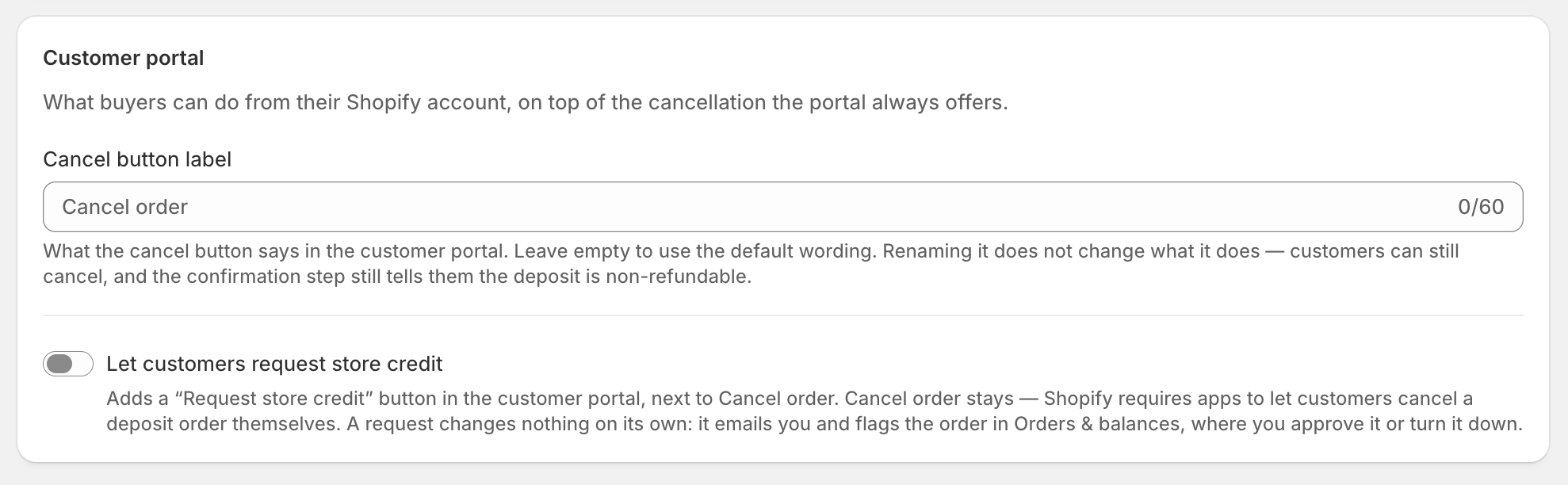
You can change what the cancel button says, for example to "Stop my plan". Leave it empty to use the default "Cancel order", which is already translated into the buyer's language.
Renaming the button doesn't change what it does. Buyers can still cancel, and the confirmation still tells them if the deposit is non-refundable.
Where to find: Settings → Customer portal → Cancel button label
Turn on store credit requests
Where to find: Settings → Customer portal → Let customers request store credit
Once it's on, you can write your own text. Any field you leave empty uses the built-in text, which is already translated.
Field | What it's for | Limit |
|---|---|---|
Button label | The button text, shown next to Cancel order. | 60 characters |
Heading | The title above the request. | 120 characters |
Explanation | What happens next and what the buyer gets back. Plain text. | 600 characters |
Policy link | A link to your store credit or refund policy. Must start with https://. Leave empty to hide it. | 500 characters |
Policy link text | The words the link is shown as. | 60 characters |
Languages
The portal shows in the buyer's language. It's translated into English, Arabic, Spanish, French, Russian and Chinese (Simplified).
Text you write yourself, like the cancel button label or the store credit text, shows exactly as you typed it.